Introduction
You have the perfect JPG file ready to go. Maybe it’s a sleek logo for your brand or a simple graphic for a personalized gift. The idea of seeing it stitched out on your Brother embroidery machine is exciting, but there’s a catch: you need a PES file. The promise of online tools is tempting—upload, click, download. They market themselves as the solution to convert JPG to PES in a way that’s “quick, clean, and professional.” But can an automated website truly deliver on all three of those promises? The reality is more nuanced. While “quick” is almost guaranteed, “clean” and “professional” are outcomes that depend heavily on what you do before and after that click. This guide will walk you through how to use online converters effectively, set realistic expectations, and implement the crucial steps that bridge the gap between a fast file and a flawless stitch-out.
The Online Converter Promise vs. Reality
Let’s break down what these platforms typically offer and what’s really happening.
The Promise (The Sales Pitch):
-
Quick: Upload your JPG, select PES, and get a file in under a minute.
-
Clean: The advertisement shows crisp, perfect embroidery.
-
Professional: The implication is that the file is ready for commercial use.
The Reality (The Technical Truth):
-
Quick: This is 100% accurate. The conversion process is instantaneous because it’s fully automated.
-
Clean: This is where the first gap appears. “Clean” on these sites usually means the website interface is clean, not necessarily your output file. The algorithm makes a basic trace of your image, often creating inefficient stitch paths and ignoring essential embroidery structures.
-
Professional: This is the biggest stretch. A professional PES file is engineered for a specific fabric, includes underlay to prevent puckering, and has optimized stitch sequencing. Online converters do none of this. They produce a generic file.
So, the real question becomes: How can you use these quick tools and still aim for a clean, professional result through your own actions?
Phase 1: Pre-Conversion – Your “Clean” Starts Here
This is the most critical phase. The quality of your input JPG dictates 80% of the converter’s output. You must prepare your image to be “embroidery-aware.”
Step 1: Choose the Right JPG.
Not all images are created equal. The best candidates are:
-
High-Contrast Graphics: Logos, clipart, bold text.
-
Solid Color Blocks: Avoid photographs, watercolors, or images with subtle gradients.
-
Simple and Scalable: Intricate details will be lost.
Step 2: Edit for Embroidery (Non-Negotiable).
Use a free tool like Photopea.com (a browser-based Photoshop clone), Canva, or GIMP.
-
Remove the Background: Isolate your design on a pure white layer. Use magic wand or erase tools.
-
Increase Contrast: Make the edges of your design pop against the background.
-
Simplify Colors: Use a “Posterize” filter to reduce the image to 3-5 flat colors. This forces the design into a stitchable format.
-
Thicken Fine Lines: Any line thinner than 2-3 pixels will likely vanish or stitch poorly. Use a brush tool to thicken it.
-
Crop Tightly: Eliminate all unnecessary blank space around the design.
Think of this as creating a clear, color-by-number map. You’re giving the online algorithm the simplest possible puzzle to solve.
Phase 2: The Online Conversion – Executing “Quick”
Now, with your prepped JPG, you visit a converter.
Choosing a Platform: Opt for platforms that are at least somewhat specialized in embroidery, like EmbroideryFormat.com, PicStitch.com, or the conversion function within a larger community site. They often have slightly better algorithms than a generic file converter.
The Process:
-
Upload your meticulously prepared JPG.
-
Select the output format: Brother PES.
-
If there are settings, choose a medium stitch density and limit the number of colors to match your posterized image.
-
Click “Convert” or “Generate.”
In seconds, you have a PES file. The “quick” promise is fulfilled.
Phase 3: Post-Conversion – Your Path to “Professional”
This is where you save the result. The raw file from the website is almost certainly not professional. It’s a first draft. You must treat it as such.
Step 1: Inspect and Edit in Free Software.
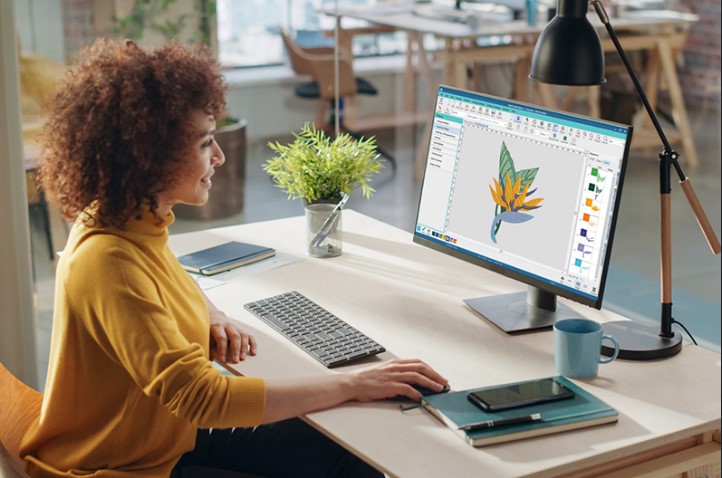
You cannot stop at the downloaded file. You need to open it in software that lets you edit embroidery stitches.
-
Use Brother’s Free Software: Download MyEditor from Brother’s website. It’s free and allows you to open PES files.
-
Open and Audit: Load your new PES file. Look for:
-
Excessive Jump Stitches: Long, loose threads connecting design elements.
-
Dense, Blobby Areas: Especially in small details.
-
Poor Stitch Sequencing: The order might be illogical.
-
-
Make Basic Cleanup: While MyEditor isn’t a full digitizer, you can sometimes adjust thread colors, delete small problematic elements, and get a better visual of the stitch path.
Step 2: The Non-Negotiable Professional Step: The Test Stitch.
This is the absolute divider between amateur and professional results.
-
DO NOT stitch on your final garment.
-
Hoop a scrap of your actual project fabric with the correct stabilizer.
-
Run the PES file and watch it carefully.
-
Analyze the Physical Sample:
-
Puckering? The file lacks underlay and has excessive density.
-
Thread Breaks? Density is too high in spots.
-
Details Lost? The design is too complex for its size.
-
Fabric Grinning Through? Fill stitch density is too low.
-
Step 3: Iterate or Invest.
Based on your test:
-
Option A (Iterate): Go back to your original JPG. Simplify it even more. Remove more detail, thicken lines further. Then, run it through the online converter again and test once more. This is a process of simplification until it stitches cleanly.
-
Option B (Invest): This is the true “professional” path. Take your original JPG (not the PES from the converter) and send it to a professional digitizing service on Etsy or a dedicated site. For a fee ($15-$40), they will manually create a custom PES file with proper underlay, pull compensation, and fabric-specific settings. They will often provide a photo of a test sew-out. This is what “professional” really means.
When Does the Online Path Make Sense?
The “quick, clean, and professional” online method works acceptably only under very specific conditions:
-
The Design is Extremely Simple: A solid silhouette, a single letter, a basic shape.
-
The Project is Non-Critical: A personal craft project where perfection isn’t required.
-
You Are Willing to Test and Simplify Iteratively: You accept the process of test-stitching and editing the source image multiple times.
-
You Use the Output as a Starting Point for Further Editing in more advanced software.
Conclusion: Redefining the Workflow for Success
To convert JPG to PES in a way that is genuinely quick, clean, and professional requires redefining the workflow. The online converter is just one cog in the machine.
-
Quick: Comes from the online tool.
-
Clean: Comes from your diligent pre-conversion image editing.
-
Professional: Comes from your post-conversion quality control—the test stitch and the decision to either iterate or invest in human expertise.
By embracing this three-phase approach, you harness the speed of automation while taking responsibility for the quality. You understand that the click of the “convert” button is the beginning of the journey, not the end. For truly professional results, especially for business logos or important projects, that journey almost always leads to investing in a skilled digitizer. For simple, personal projects, your careful preparation and testing can yield perfectly satisfying results. The power is in knowing the difference and acting accordingly.

Freight Forwarding Services in Canada: How Progressive Cargo Simplifies Global Logistics
Freight forwarding plays a crucial role in today’s interconnected global economy. Business…